Smol Internet
Goals for this section
In the previous chapter, we built a single network of two machines that could ping each other. Now, we want to build on that structure to add a second network. Once we have another network, we'll need to start building routes for machines on each network to be able to communicate with each other. This will create an internetwork, or internet.
Here's what we expect our internet to look like by the end of this chapter:
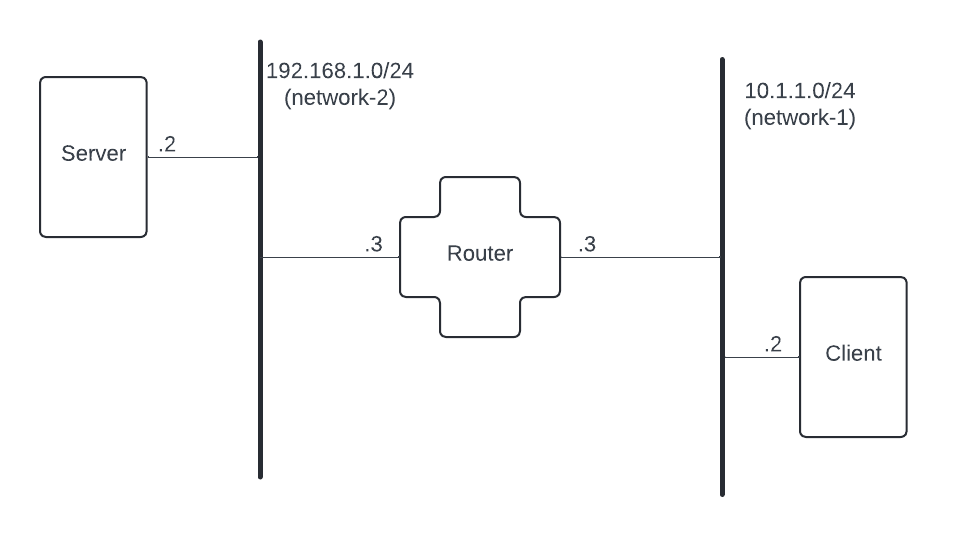
You'll notice in this network diagram that we've built on the smol network from Chapter 1.1. Here, we've added a new network, 192.168.1.0/24, and we've added a new machine, router. A router is a machine that has an interface on multiple networks and can forward packets across those networks. In this case, our router has an interface on both 10.1.1.0/24 and 192.168.1.0/24.
Now that we've got a bit of an internet drawn out in our network diagram above, let's take a moment to really understand how to read what we're seeing there. Think of this diagram like a street map. Each line is a path we can take to get from one location to another. So, if we wanted to travel from client to server, we'd leave client on the 10.1.1.0/24 network until we got to router. router is a bridge between 10.1.1.0/24 and 192.168.1.0/24, so we'd pass through router to get to 192.168.1.0/24. Once there, we could find server and go visit that machine. We've added the IP addresses for the machines and networks to make it easier to reference and understand which machine is talking to which other machine on which network.
Similar to our previous chapter, we've already added all of the machines and all of the networks we need to work with. To start your internet from this chapter's directory, run byoi-rebuild.
Make those networks communicate with each other
How do machines communicate across networks? Well, first they need to have a router. What is a router, but another machine on the network. A router has 2 special properties that make it a router instead of just a regular machine on the network:
- an interface on more than one network
- the ability to forward packets that are not destined for itself to other machines
Check our router configuration
Let's see how router is currently configured. Once you're byoi-rebuild is done running, hopon the router:
hopon routerNow, let's check what interfaces exist on router with the ip addr command:
root@router:/# ip addr
1: lo:  mtu 65536 qdisc noqueue state UNKNOWN group default qlen 1000
    link/loopback 00:00:00:00:00:00 brd 00:00:00:00:00:00
    inet 127.0.0.1/8 scope host lo
       valid_lft forever preferred_lft forever
943: eth0@if944:  mtu 1500 qdisc noqueue state UP group default
    link/ether 02:42:0a:01:02:03 brd ff:ff:ff:ff:ff:ff link-netnsid 0
    inet 192.168.1.3/24 brd 192.168.1.255 scope global eth0
       valid_lft forever preferred_lft forever
945: eth1@if946:  mtu 1500 qdisc noqueue state UP group default
    link/ether 02:42:0a:01:01:03 brd ff:ff:ff:ff:ff:ff link-netnsid 0
    inet 10.1.1.3/24 brd 10.1.1.255 scope global eth1
       valid_lft forever preferred_lft forever
Look at that! There are 2 eth interfaces! eth1 at 10.1.1.3/24 and eth0 at 192.168.1.3/24. Now let's check our routing table:
root@router:/# ip route
10.1.1.0/24 dev eth1 proto kernel scope link src 10.1.1.3
192.168.1.0/24 dev eth0 proto kernel scope link src 192.168.1.3
Can router ping server?
BOOM! router has routes for both the 10.1.1.0/24 and 192.168.1.0/24 networks! Let's confirm this is configured correctly when router tries to ping server:
root@router:/# ping 192.168.1.2 -c 2
PING 192.168.1.2 (192.168.1.2) 56(84) bytes of data.
64 bytes from 192.168.1.2: icmp_seq=1 ttl=64 time=0.164 ms
64 bytes from 192.168.1.2: icmp_seq=2 ttl=64 time=0.193 ms

--- 192.168.1.2 ping statistics ---
2 packets transmitted, 2 received, 0% packet loss, time 1028ms
rtt min/avg/max/mdev = 0.164/0.178/0.193/0.014 ms
Sweet! That worked! But how? Let's open a second terminal window and check what's happening on server using tcpdump. Run the following commands:
Terminal window for server: tcpdump -n
Terminal window for router: ping 192.168.1.2 -c 2
And what we see in that tcpdump output is:
root@server:/# tcpdump -n
tcpdump: verbose output suppressed, use -v[v]... for full protocol decode
listening on eth0, link-type EN10MB (Ethernet), snapshot length 262144 bytes
18:50:57.464168 IP 192.168.1.3 > 192.168.1.2: ICMP echo request, id 106, seq 1, length 64
18:50:57.464253 IP 192.168.1.2 > 192.168.1.3: ICMP echo reply, id 106, seq 1, length 64
18:50:58.485694 IP 192.168.1.3 > 192.168.1.2: ICMP echo request, id 106, seq 2, length 64
18:50:58.485730 IP 192.168.1.2 > 192.168.1.3: ICMP echo reply, id 106, seq 2, length 64
18:53:54.166970 ARP, Request who-has 192.168.1.3 tell 192.168.1.2, length 28
18:53:54.167080 ARP, Request who-has 192.168.1.2 tell 192.168.1.3, length 28
18:53:54.167123 ARP, Reply 192.168.1.2 is-at 02:42:0a:01:02:02, length 28
18:53:54.167168 ARP, Reply 192.168.1.3 is-at 02:42:0a:01:02:03, length 28
^C
4 packets captured
4 packets received by filter
0 packets dropped by kernel
We can see why server is able to respond to router from the first line of the (non-default) output:
18:50:57.464168 IP 192.168.1.3 > 192.168.1.2: ICMP echo request, id 106, seq 1, length 64Here we see the incoming ping or ICMP echo request. The source machine is 192.168.1.3, which is router's IP address on 192.168.1.0/24! This means that the request is coming from an IP address on a network that server has an interface on! server can respond! The next line is server, 192.168.1.2 responding back to router, 192.168.1.3, with an ICMP echo reply.
Can server ping router on the 10.1.1.0/24 network?
We've already seen that server can respond to router's pings that were issued from router's interface on 192.168.1.0/24. We can double check that server can initiate the ping, just for fun:
root@server:/# ping 192.168.1.3 -c 2
PING 192.168.1.3 (192.168.1.3) 56(84) bytes of data.
64 bytes from 192.168.1.3: icmp_seq=1 ttl=64 time=0.245 ms
64 bytes from 192.168.1.3: icmp_seq=2 ttl=64 time=0.242 ms

--- 192.168.1.3 ping statistics ---
2 packets transmitted, 2 received, 0% packet loss, time 1041ms
rtt min/avg/max/mdev = 0.242/0.243/0.245/0.001 ms
Now... let's see if server is able to ping router's interface on the 10.1.1.0/24 network...
root@server:/# ping 10.1.1.3
ping: connect: Network is unreachable
Lovely! This is because, while router has an interface on the 192.168.1.0/24 network and server and router can directly communicate on that network, server doesn't know anything about the 10.1.1.0/24 network; not even that router knows about it. We need to define a route for server that tells it how to get to the 10.1.1.0/24 network!
Make server ping hosts on the 10.1.1.0/24 network
The first thing we need to do is add a route from server to the 10.1.1.0/24 network via router. Because router has routes to both 192.168.1.0/24 and 10.1.1.0/24, router can act as the router between the two. We can manage routes on our machines using the ip route command:
root@server:/# ip route add 10.1.1.0/24 via 192.168.1.3This command identifies the network, 10.1.1.0/24 (a.k.a. "10.1.1.0/24") and then says: "Any time you have a packet for this network, you should send it to 192.168.1.3 (a.k.a. router), cuz that dude knows all about it."
Now, if we check the routes that server knows about, we'll see the route defined in server's routing table:
root@server:/# ip route
10.1.1.0/24 via 192.168.1.3 dev eth0
192.168.1.0/24 dev eth0 proto kernel scope link src 192.168.1.2
Now, let's try that ping again!
root@server:/# ping 192.168.1.3 -c 2
PING 192.168.1.3 (192.168.1.3) 56(84) bytes of data.
64 bytes from 192.168.1.3: icmp_seq=1 ttl=64 time=0.340 ms
64 bytes from 192.168.1.3: icmp_seq=2 ttl=64 time=0.266 ms

--- 192.168.1.3 ping statistics ---
2 packets transmitted, 2 received, 0% packet loss, time 1028ms
rtt min/avg/max/mdev = 0.266/0.303/0.340/0.037 ms
Sweet! It looks like that's working! But, what does this request look like on router? server is sending the ping packets out its 192.168.1.0/24 interface and passing them off to router. router is receiving the packets on its 192.168.1.0/24 interface, but the destination is for router's IP address on 10.1.1.0/24.
Let's use tcpdump to investigate how router processes these packets. To do that, we'll need a couple more terminal windows open, one to run the ping from server and one for each interface on router.
Window 1: server will run ping 10.1.1.3 -c 2
Window 2: router will run tcpdump -ni eth0
Window 3: router will run tcpdump -ni eth1
tcpdump can only listen on one interface at a time. We discovered in Chapter 001 that the -i flag on the tcpdump command allows us to specify which interface we'd like tcpdump to be listening on. Because we want to know the output of BOTH interfaces, we're going to run a tcpdump listening on each interface in separate terminal windows.
OUTPUT: Window 1 -
server
root@server:/# ping 10.1.1.3 -c 2
PING 10.1.1.3 (10.1.1.3) 56(84) bytes of data.
64 bytes from 10.1.1.3: icmp_seq=1 ttl=64 time=0.354 ms
64 bytes from 10.1.1.3: icmp_seq=2 ttl=64 time=0.264 ms

--- 10.1.1.3 ping statistics ---
2 packets transmitted, 2 received, 0% packet loss, time 1070ms
rtt min/avg/max/mdev = 0.264/0.309/0.354/0.045 ms
Exactly what we expected.
OUTPUT: Window 2 -
routerrunningtcpdump -ni eth0<=192.168.1.0/24interface
18:55:02.338352 IP 192.168.1.2 > 10.1.1.3: ICMP echo request, id 35, seq 1, length 64
18:55:02.338420 IP 10.1.1.3 > 192.168.1.2: ICMP echo reply, id 35, seq 1, length 64
18:55:03.378631 IP 192.168.1.2 > 10.1.1.3: ICMP echo request, id 35, seq 2, length 64
18:55:03.378649 IP 10.1.1.3 > 192.168.1.2: ICMP echo reply, id 35, seq 2, length 64
router receiving the ping ICMP echo request and responding with and ICMP echo reply.
OUTPUT: Window 3 -
routerrunningtcpdump -ni eth1<=10.1.1.0/24interface
NOTHING shows up here! Why? When the packets reach router, router recognizes that they have reached their destination. There's no need to send the packet through the 10.1.1.0/24 interface just to stay on the same machine. The work is done!
===
Now, what happens when we send those packets on to client? Add a new terminal window and hopon client and run tcpdump -n. Then, from server, ping client.
root@server:/# ping 10.1.1.2 -c 2 -w 2
PING 10.1.1.2 (10.1.1.2) 56(84) bytes of data.

--- 10.1.1.2 ping statistics ---
2 packets transmitted, 0 received, 100% packet loss, time 1028ms
Notice that we see 100% packet loss. But, when we check client's tcpdump, we can see that the request got to client:
19:01:36.666989 ARP, Request who-has 10.1.1.2 tell 10.1.1.3, length 28
19:01:36.667005 ARP, Reply 10.1.1.2 is-at 02:42:0a:01:01:02, length 28
19:01:36.667023 IP 192.168.1.2 > 10.1.1.2: ICMP echo request, id 37, seq 1, length 64
19:01:37.729917 IP 192.168.1.2 > 10.1.1.2: ICMP echo request, id 37, seq 2, length 64
What happened here?
serverhas a route into the10.1.1.0/24network viarouterrouterreceives the requests and:- checks the destination IP
- sees that the request is not for itself
- checks whether or not to forward the packet
- finds out that it should route the packets (packet forwarding is enabled by default)
- and does an ARP request which finds
client
router knows where the packets go and sends them on to client. That's the first half of the process! client has ping packets!
But then what? client needs to reply to the ping, client knows the response needs to go to 192.168.1.2, but client doesn't know where 192.168.1.2 is, just like server didn't know before we added the route to 10.1.1.0/24. client has no entries to tell it where to send its response packets, so it just drops them on the floor.
Tell client how to respond to server
We've already seen this in action. At this point, we need to tell client how to find the 192.168.1.0/24 network. We did this earlier in teaching server how to find the 10.1.1.0/24 network. We're going to leave this as an exercise for the reader to attempt on their own. If you need some guidance, review the "Make server ping hosts on the 10.1.1.0/24 network" section above.
Now let's make this routing setup automatic
We don't want to spend the time manually adding and removing routes every time we start our containers. To solve this problem, we've added a script that is run on every machine whenever your internet is rebuilt. Take a look at the start-up.sh script. We can use this file to conditionally add routes depending on the hostname, i.e. server or client. Add the following to your start-up.sh script and then run byoi-rebuild to restart your internet with those changes.
case $HOSTNAME in
  (client) ip route add 192.168.1.0/24 via 10.1.1.3;;
  (server) ip route add 10.1.1.0/24 via 192.168.1.3;;
esac
After you rebuild, you should be able to ping each machine on each network.
Appendix: Answering Questions
What's the difference between ip addr and ip route?
There's some similar output between the ip addr and ip route commands. ip addr gives us view into the network interfaces available on a machine. ip route shows us the routing table on that machine.
But it looks like there's routing information in our ip addr output? What is the difference between a network interface and a routing table?
Looking at the output of ip route, we see a default gateway identified, default via 192.168.1.1 dev eth0. This default gateway is what will be used for any outgoing packets that are not on the otherwise defined routes. ip route shows routes on active interfaces. ip addr displays all available interfaces on a machine, even ones that are not currently active.
ip route deals entirely with layer 3 information; whereas ip addr has information about both layer 2 and layer 3.
What is happening with that 0 packets dropped by kernel from tcpdump when packets were dropped?
^C
4 packets captured
4 packets received by filter
0 packets dropped by kernel
Each of the machines say 0 packets dropped by kernel. Ummm… if the packets didn’t make it back to server and the packets weren’t dropped… where did they go? Well, client still dropped the packets. The 0 packets dropped by kernel count isn't the number of packets dropped in total; it's the number of packets dropped by tcpdump. Specifically, tcpdump would drop those packets because of buffer overflow.